1
Load the song. Set cue zero.
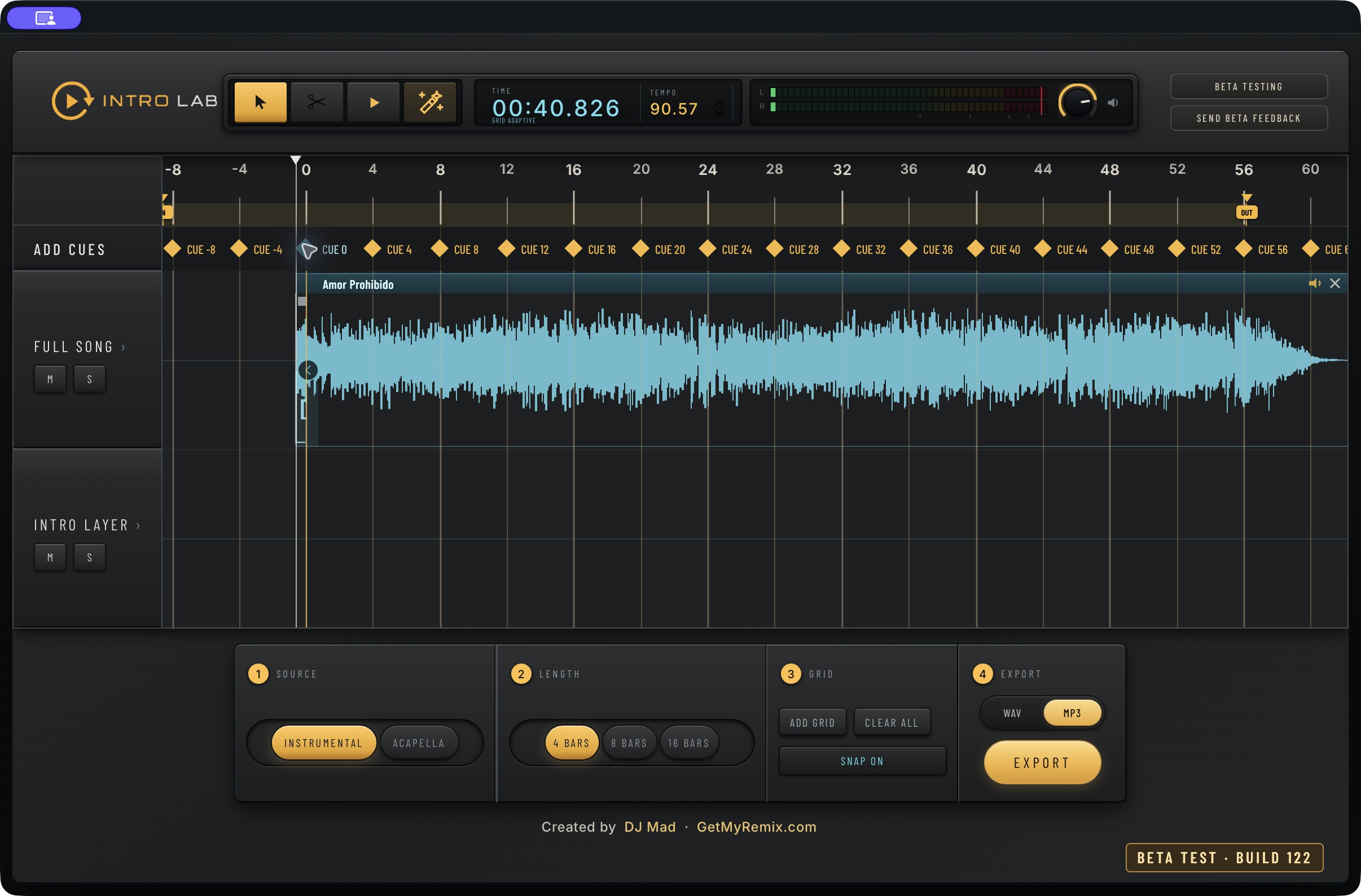
Open an MP3 or WAV. Find the first musical downbeat and double-click the cue strip to place cue zero. The phrase cues give you the bar references for the next move.
Create instrumental and acapella intros. Build automatically, place phrases by hand, or bring the best part of the song forward.
Free private beta · Protected tester access
Apple Silicon · macOS Ventura 13.5+
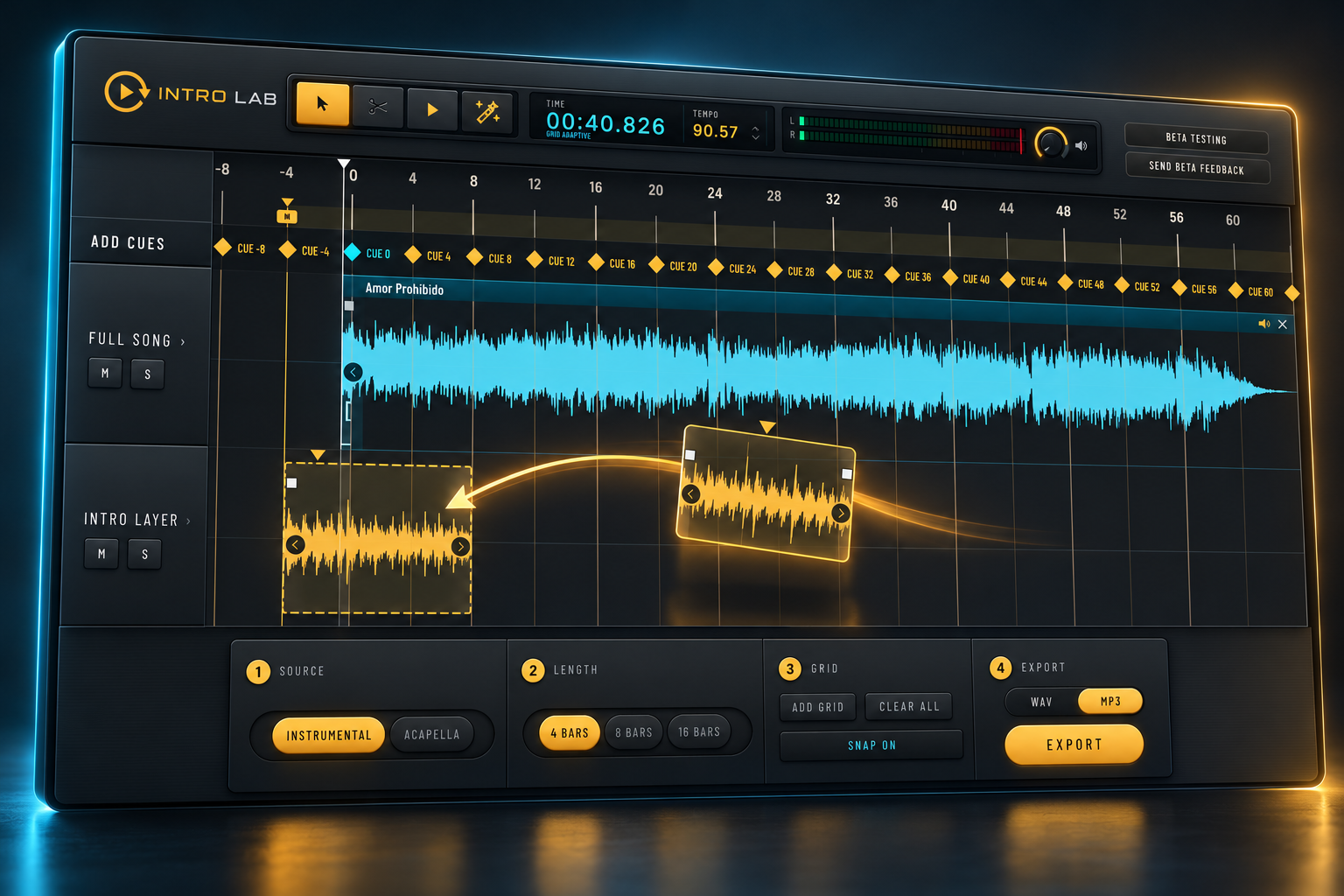
Open an MP3 or WAV. Find the first musical downbeat and double-click the cue strip to place cue zero. The phrase cues give you the bar references for the next move.
Keep the wand-shaped Auto Intro control on. Double-click the 4-, 8-, or 16-bar phrase cue to build the intro automatically. Dragging a cue adjusts its timing; it does not trigger the build.
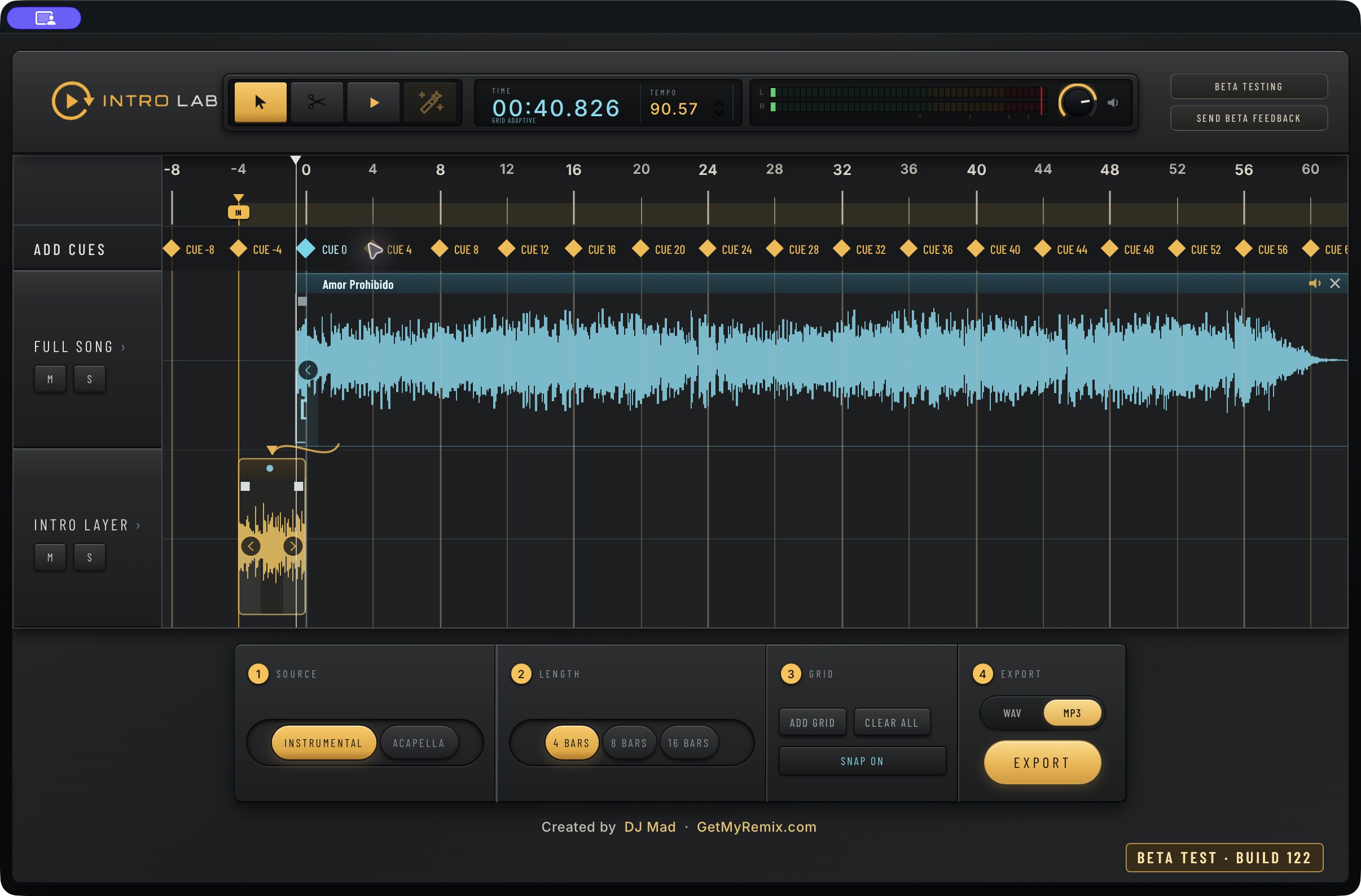
Intro Lab separates the selected source, builds the layer, and places the intro before the song. Listen to the transition, then refine the result with the same editing tools used in the manual workflow.
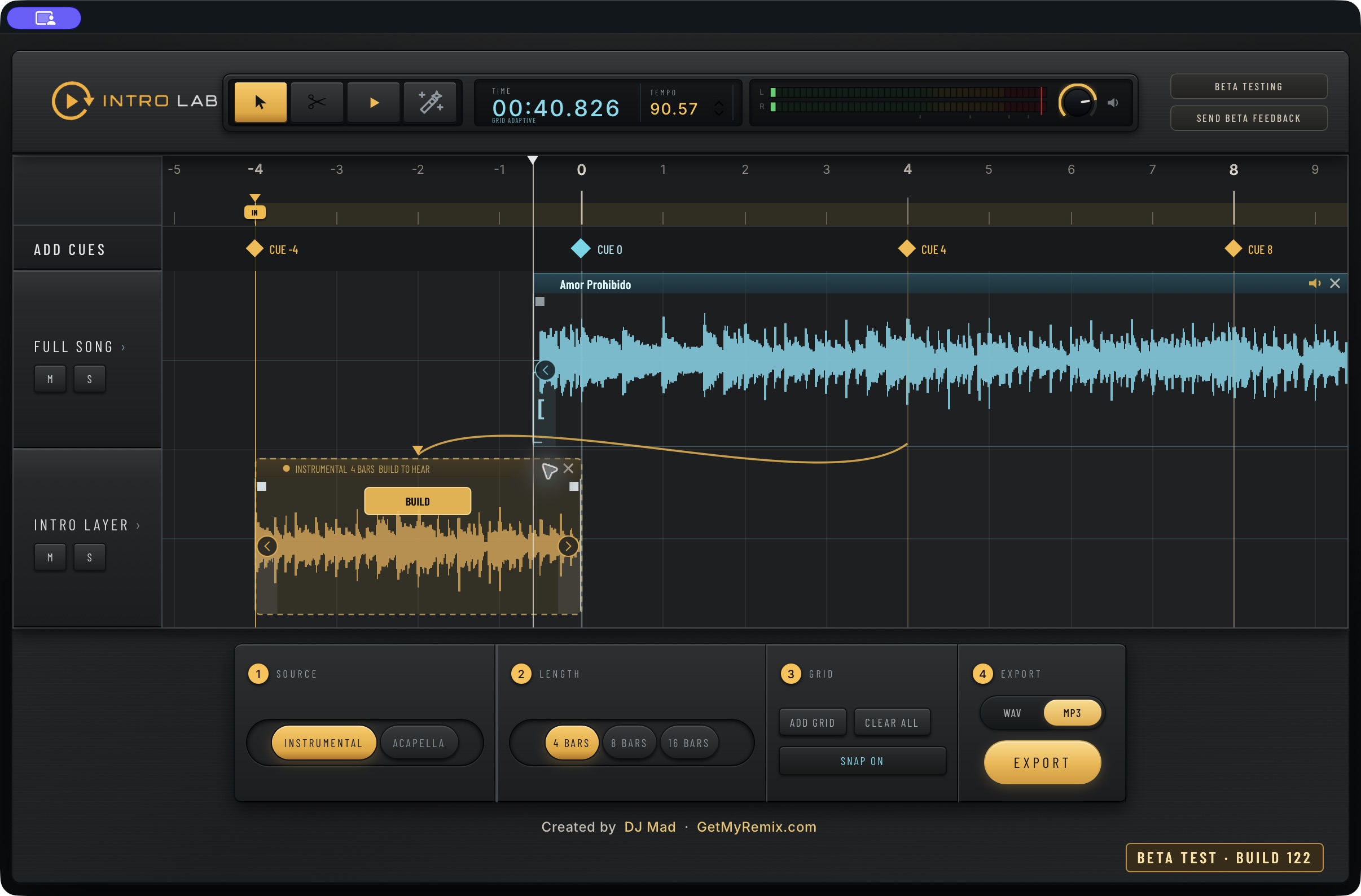
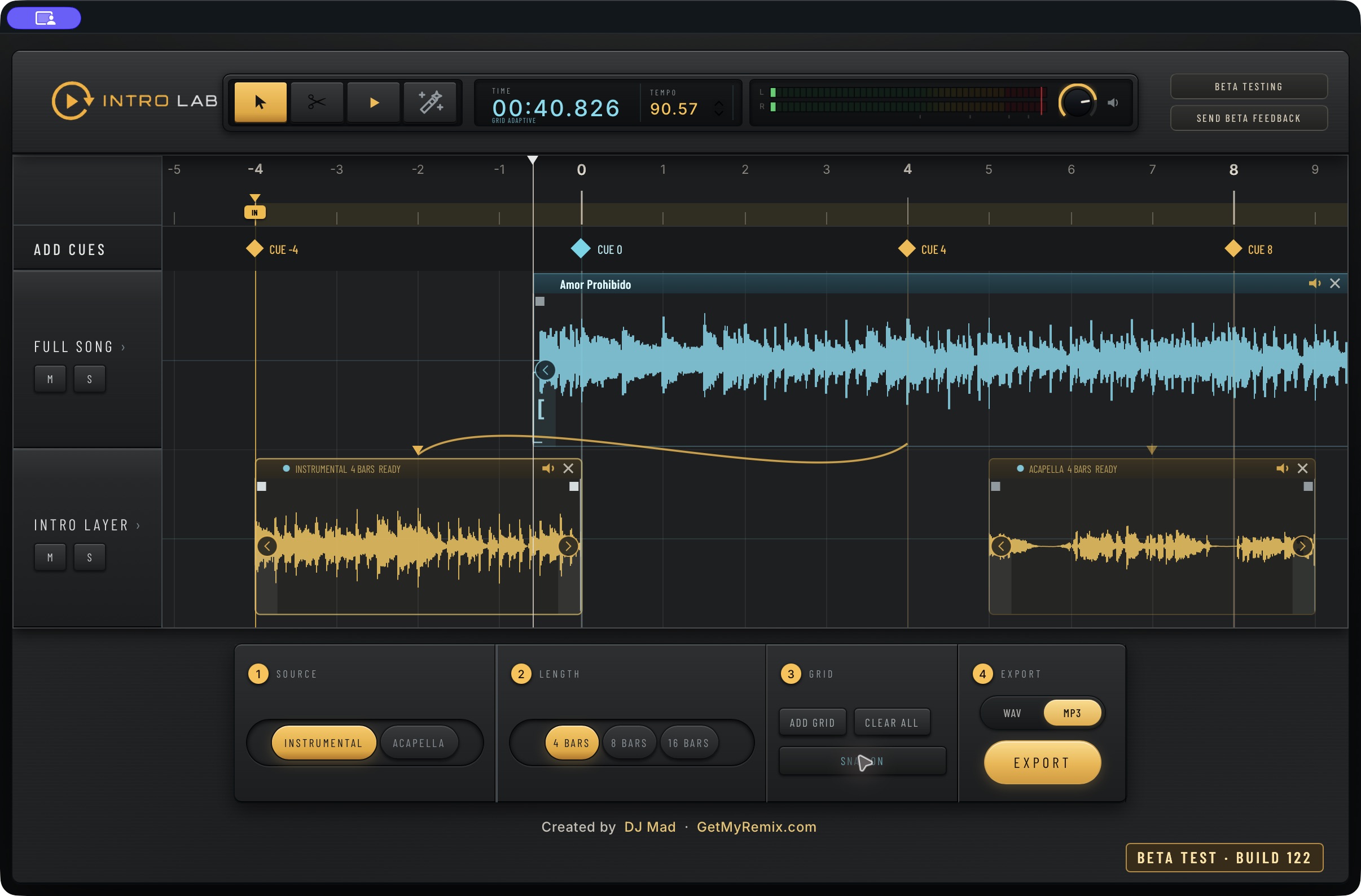
Set cue zero on the downbeat. Choose Instrumental or Acapella, select 4, 8, or 16 bars, and find the part of the song you want to use. You choose the musical phrase.
Pull down from the Full Song region’s title strip into the Intro Layer. Move the gold ghost to the position you want. The cue guides and source-to-destination connection help you see where the phrase came from and where it will land.
Click Build on the placed region to create its audio. A ghost is a placement preview until it has been built. Once ready, audition it, move it, trim it, or add fades before export.
Build a rhythm-led instrumental intro, feature a vocal phrase, or use instrumental and acapella clips together in one arrangement. Each region has its own source choice. There is no separate “Both” button: combine the clips you build.
Split the original song into sections with Scissors, then move the region by its title strip. Bring a hook or bridge earlier, move a verse later, or create a shorter version. You identify and arrange the sections—the app does not label verses or choruses automatically.
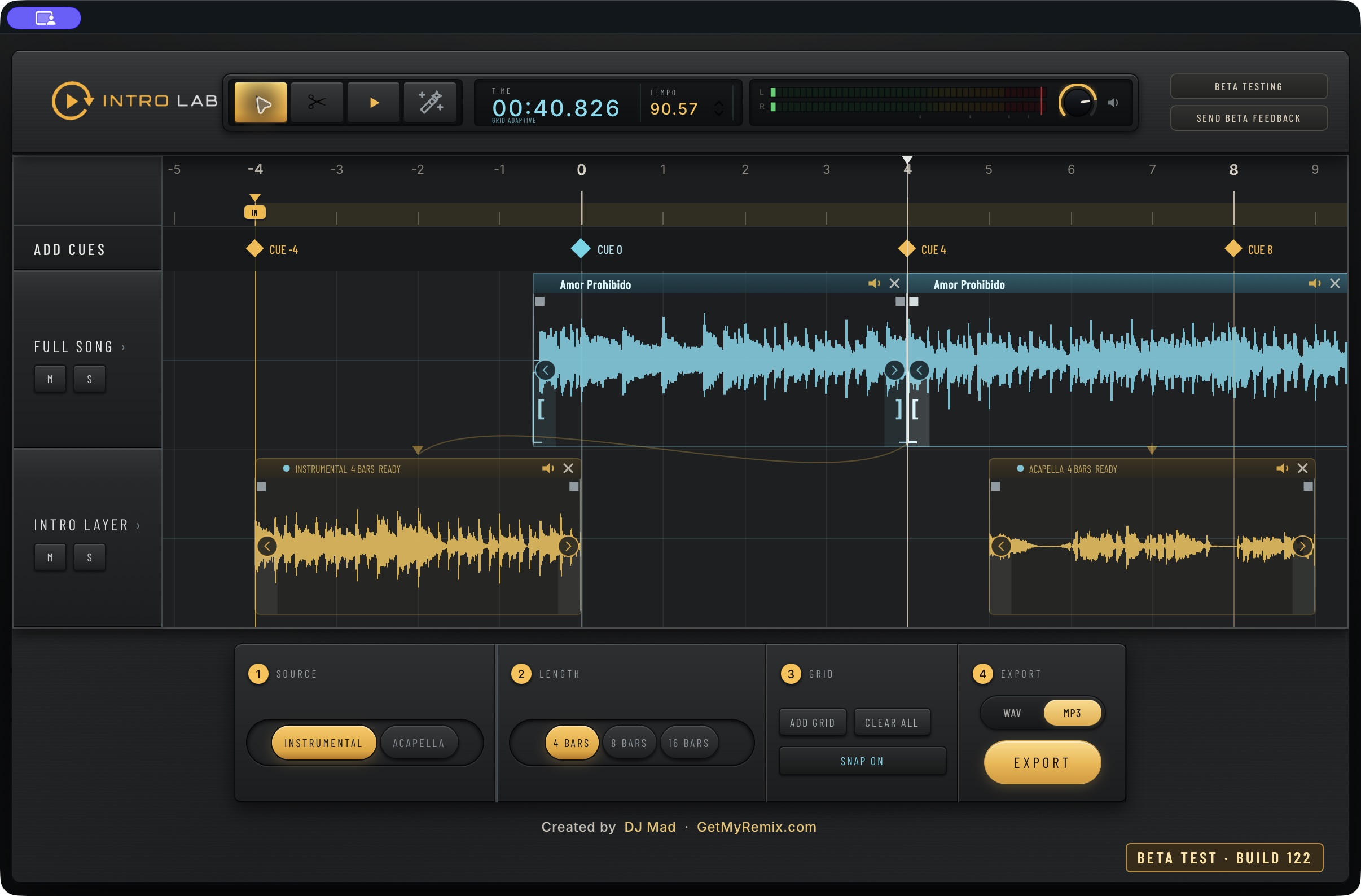
Clear controls, real app close-ups, and the details that matter. Open a topic to see how it works.
The adaptive grid follows tempo changes instead of forcing every bar to the same duration. Listen and check the waveform. Add a manual timing cue where a correction is needed; drag it to refine alignment. Phrase cues mark musical distances from cue zero.
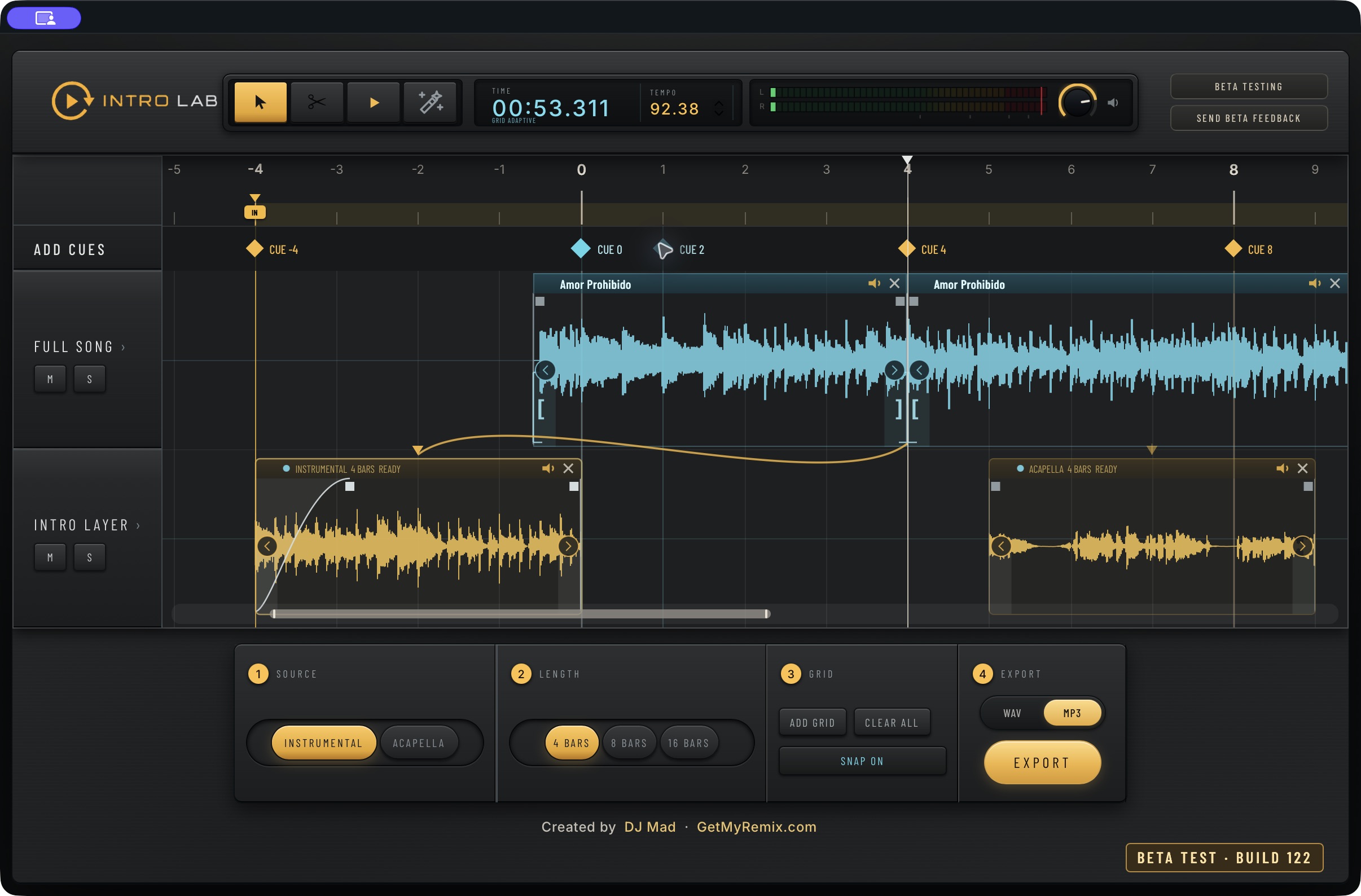
Add Grid places a manual cue at the playhead; double-clicking an empty cue-strip location also adds one. Drag a manual cue to adjust it, or double-click that manual cue to remove it. Clear All removes manual cues. Generated phrase cues and manual timing cues serve different purposes.
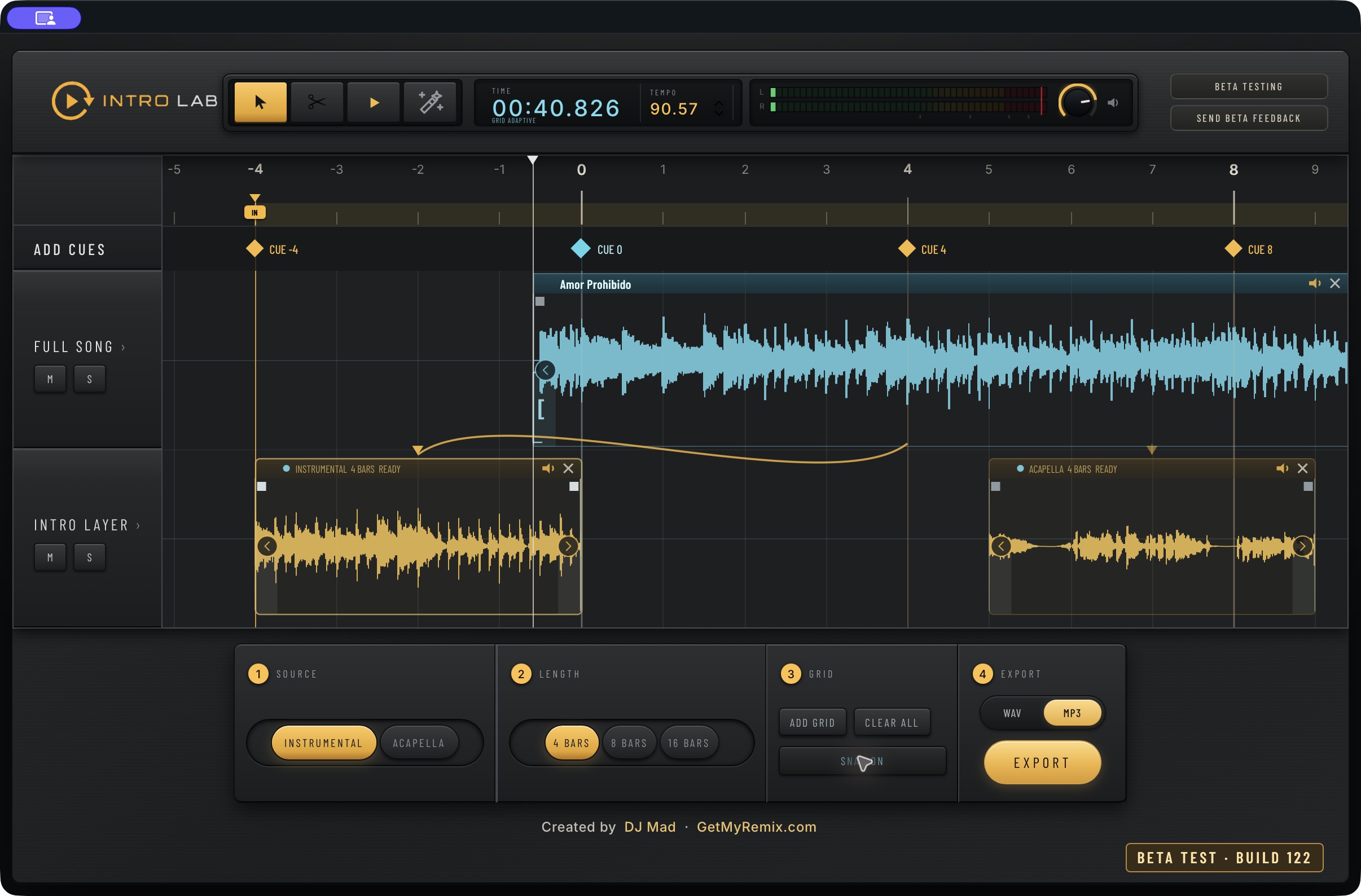
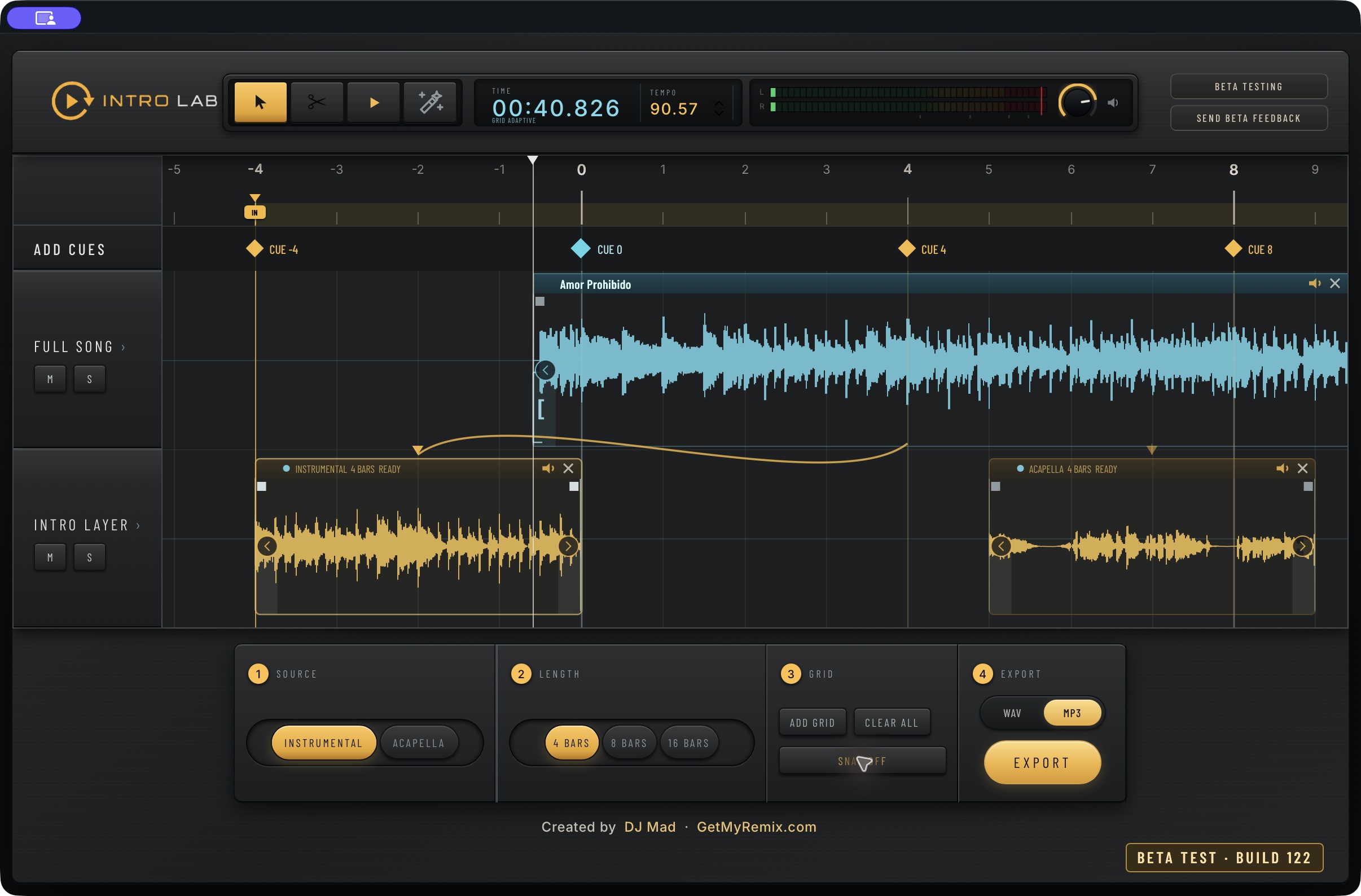
Snap On aligns supported edits to the musical grid. Snap Off lets you place, trim, and cut freely. It does not erase the detected grid or change the audio’s tempo. Hold Command for a temporary snap bypass while making an edit.
Use the edge handles to trim, the fade handles to smooth the entrance or exit, and the repeat arrows to extend a phrase forward or backward. Move a region from its title strip. Undo and Redo let you compare edits without rebuilding your arrangement from scratch.
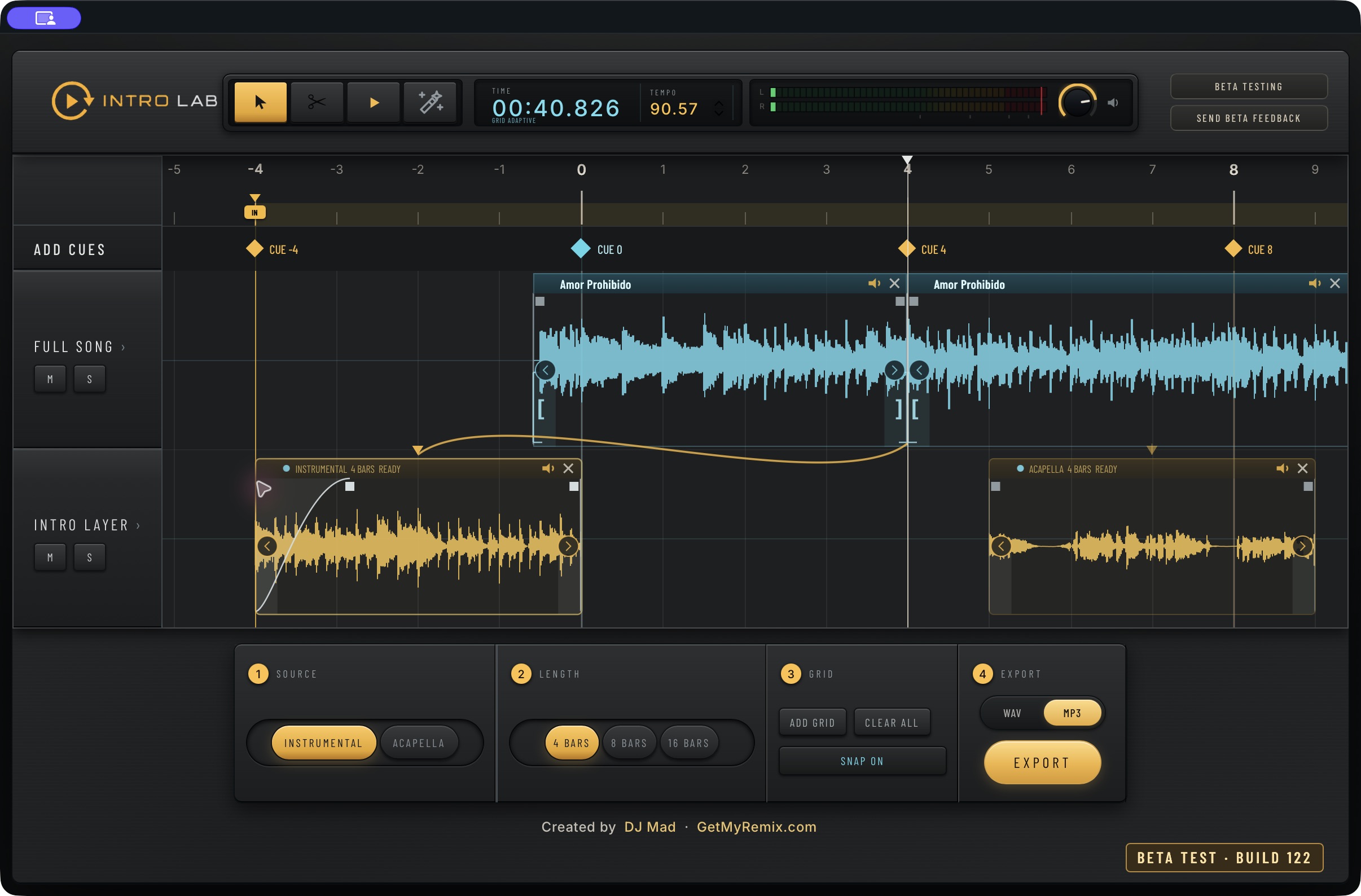
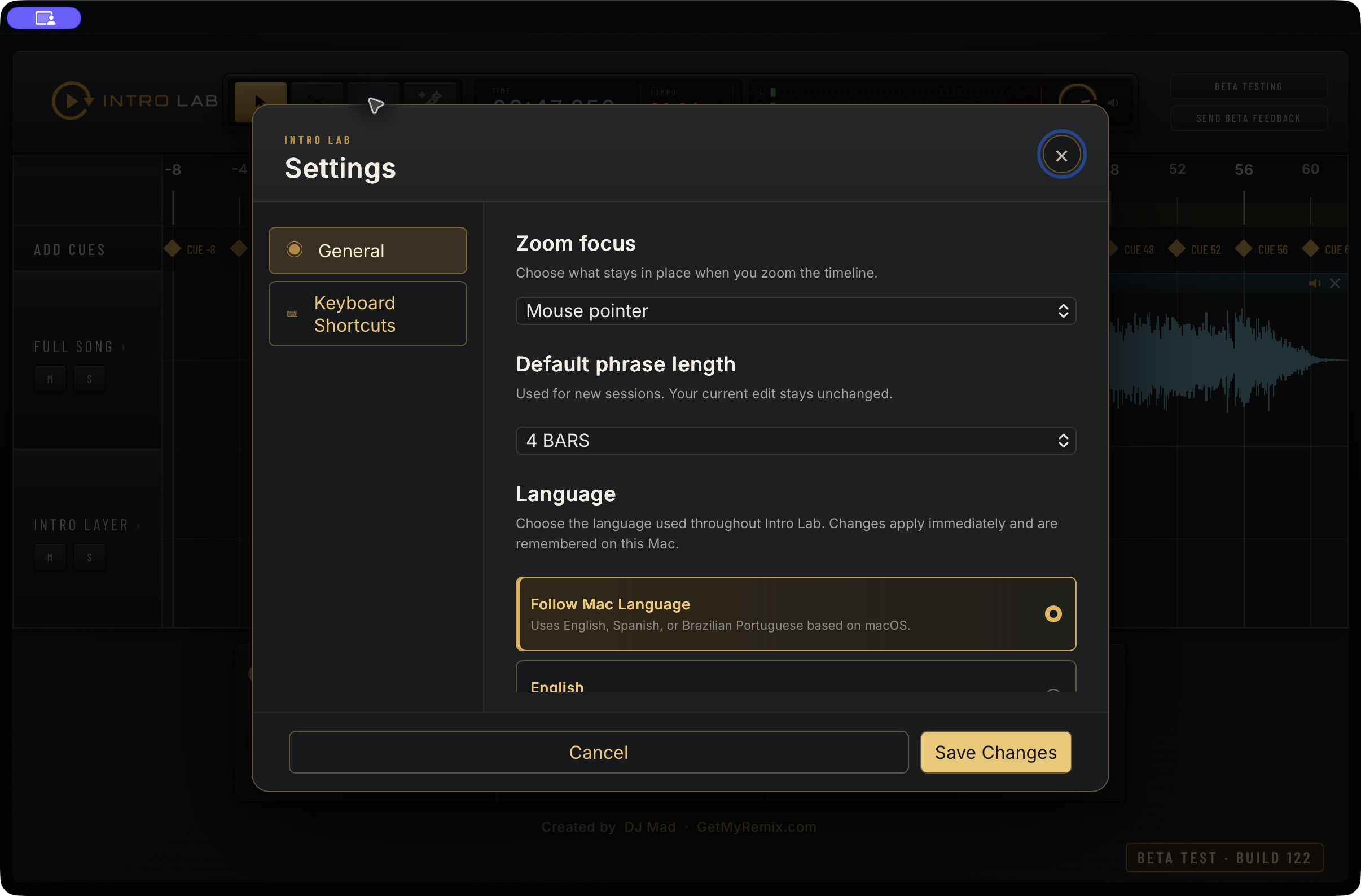
Use timeline zoom and horizontal navigation to move between a precise waveform view and the larger arrangement. In General settings, choose Mouse pointer or Playhead as the zoom focus. Cue-strip editing and playhead seeking are separate gestures.
Place built phrases before or after the original song to create mix-in and mix-out sections. Use In and Out to choose the exported range, then preview the join. Export names reflect the intro and outro presets present in the arrangement.
Play and stop from the transport. Use track Mute and Solo to compare the original song with the Intro Layer. The stereo meters and monitor level help you audition the edit while the time and tempo readouts keep its position clear.
Choose WAV for uncompressed audio or MP3 for a smaller, 320 kbps file. Set the export In and Out boundaries to define the section you want. Built-in limiting and the final peak check run before the file is written.
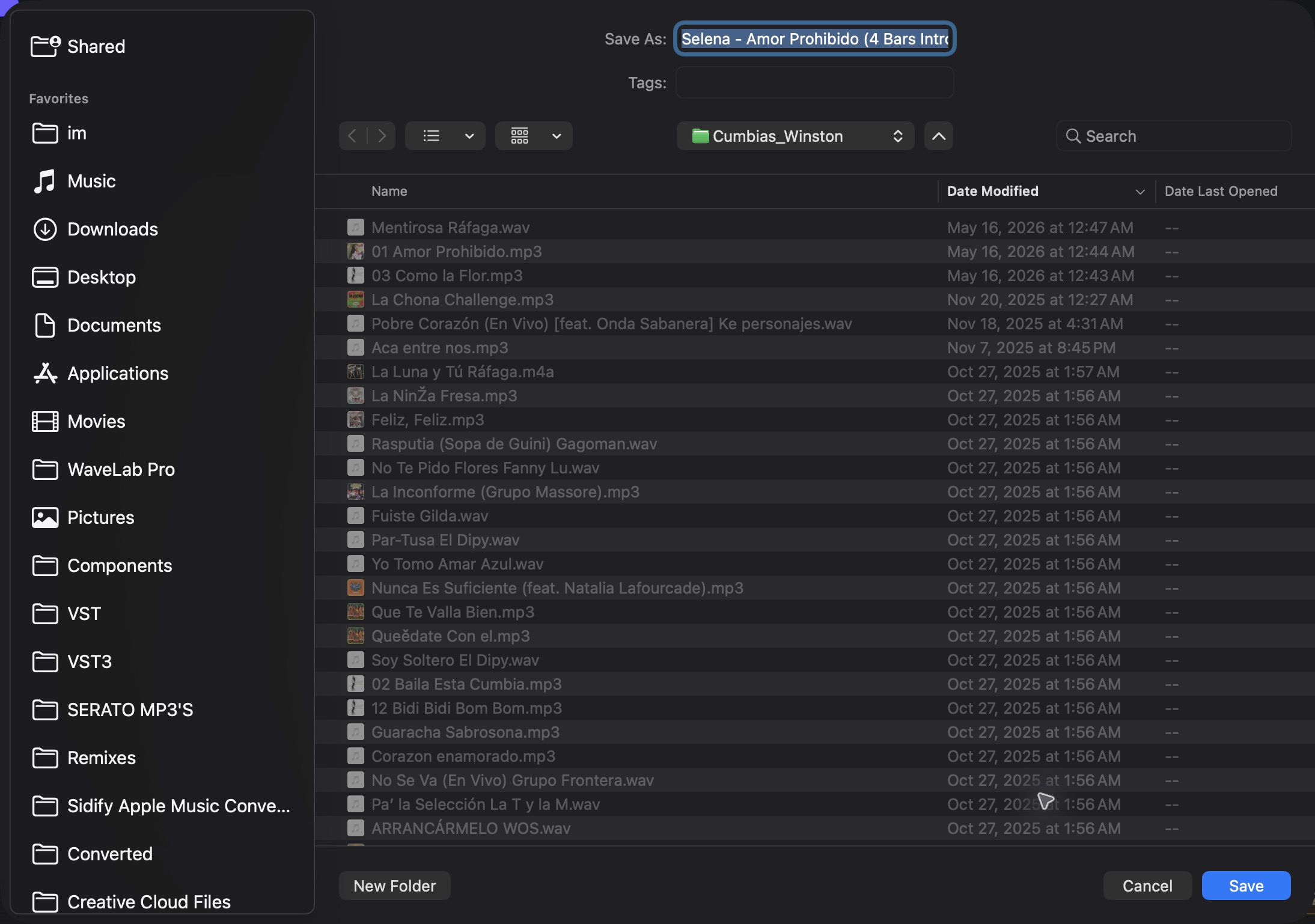
Intro Lab reads the source title and artist when available, uses the filename as a fallback, and adds an edit label such as “4 Bars Intro.” Exported tags include the title, artist when present, an Intro Lab comment, and Intro Lab artwork. It does not promise to preserve every original tag or cover image; tag display varies between players.
Open Intro Lab → Settings → General. Choose a default phrase length of 4, 8, or 16 bars for new sessions. Choose whether timeline zoom follows the playhead or mouse pointer. Changing the phrase default does not alter the current edit.
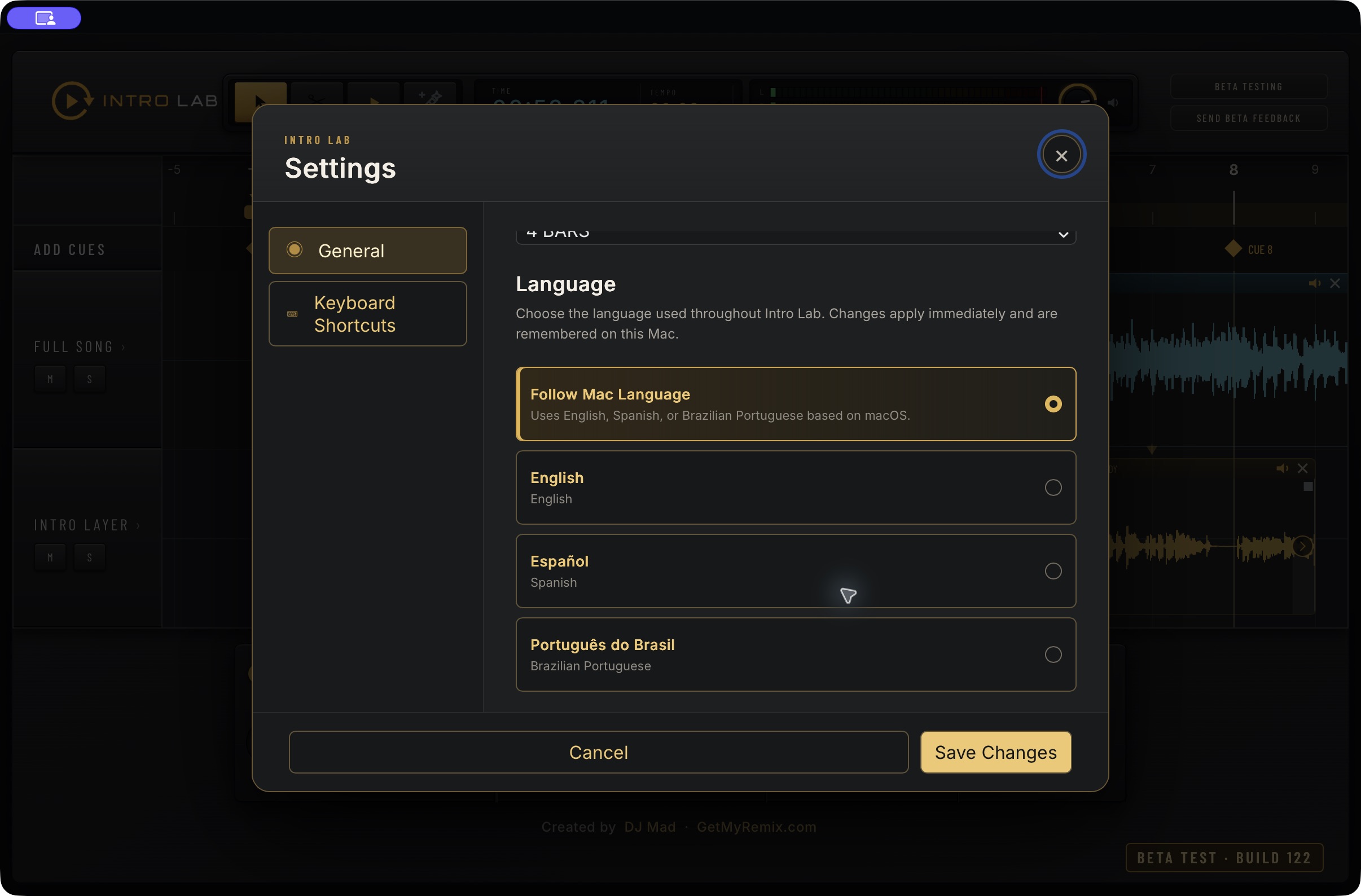
Choose English, Spanish, or Brazilian Portuguese, or follow your Mac’s language. Save Changes applies the selection and remembers it on this Mac. The translated interface keeps the same editing workflow.
Open Settings → Keyboard Shortcuts. Click a listed shortcut, press your preferred combination, then Save Changes. Use Command, Control, or Option as instructed. Restore Defaults brings back the standard assignments. Only the commands listed in this panel are customizable here.
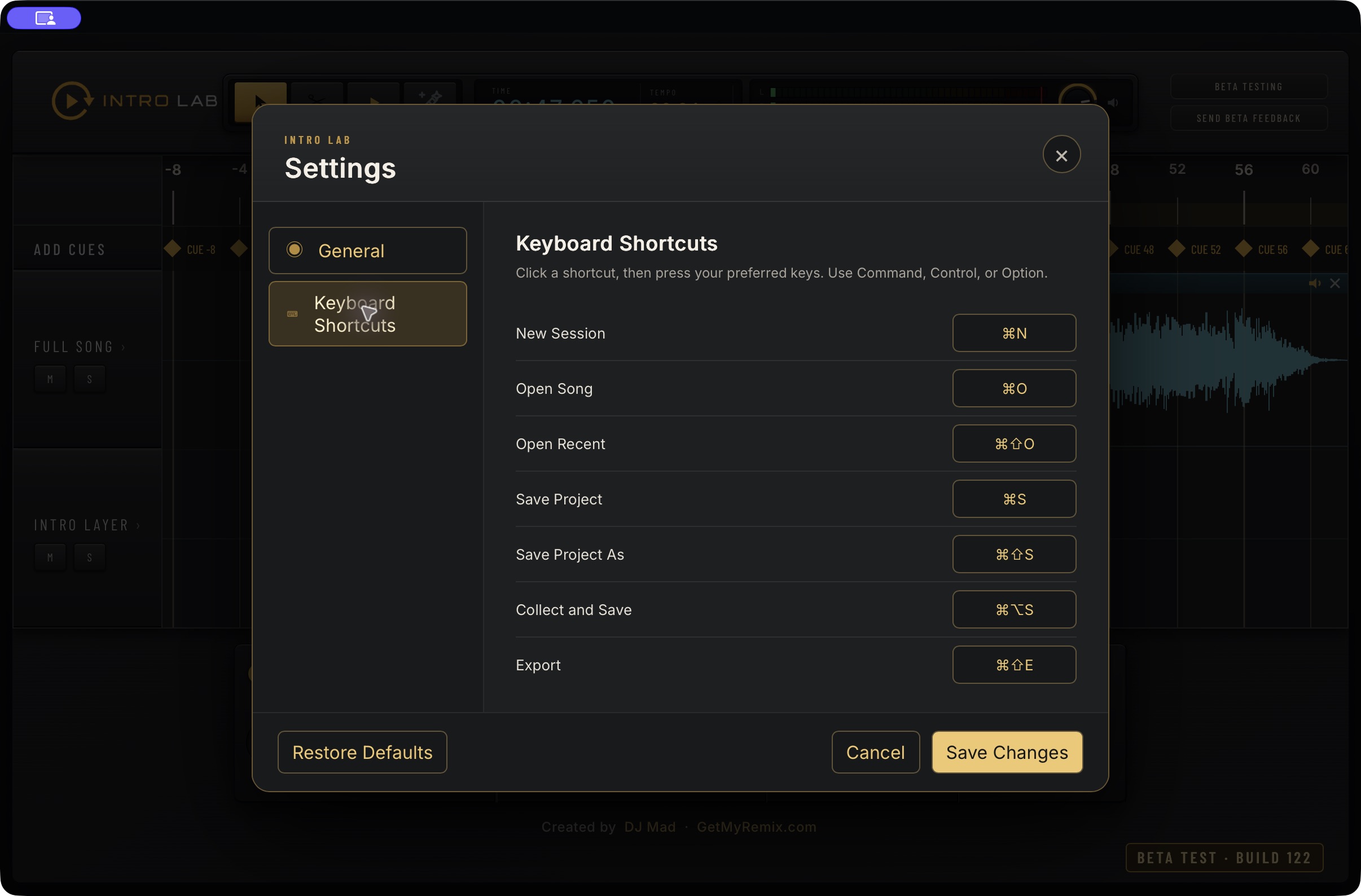
Save Project keeps the editable arrangement; Export creates the finished audio file. Collect and Save gathers project assets for a portable copy. Use the File menu for these commands. Saving a project and exporting a song are separate actions.
Intro Lab is a standalone application for Apple Silicon Macs running macOS Ventura 13.5 or later. Import MP3 or WAV and work locally without a DAW. Internet is used for activation and account services. Beta access remains protected through your GetMyRemix account.
Everything you need, in one place.
Step-by-step help for creating, editing, and exporting.
Release NotesWhat changed in the latest version.
System RequirementsApple Silicon Mac · macOS Ventura 13.5 or later.
License AgreementRead the terms for using Intro Lab.
SupportGet help with setup, activation, and the app.
Frequently Asked QuestionsQuick answers about compatibility, beta access, intros, and export.
DJs sharing their experience with Intro Lab.

“Intro Lab is a game changer for DJs! The app makes creating professional DJ intros quick, simple, and creative. I love how easy it is to customize intros and bring my own style to every mix. Whether you’re a beginner or an experienced DJ, Intro Lab is a powerful tool that helps you save time and take your sets to the next level.”


Explore more focused tools made for DJs, remixers and producers.